Bulk upload posts from a CSV file
Schedule up to 500 posts at once from a spreadsheet: columns, an example file, how rows are checked and tips for planning a month.
Plan a week or a month in a spreadsheet, then schedule everything in one upload.
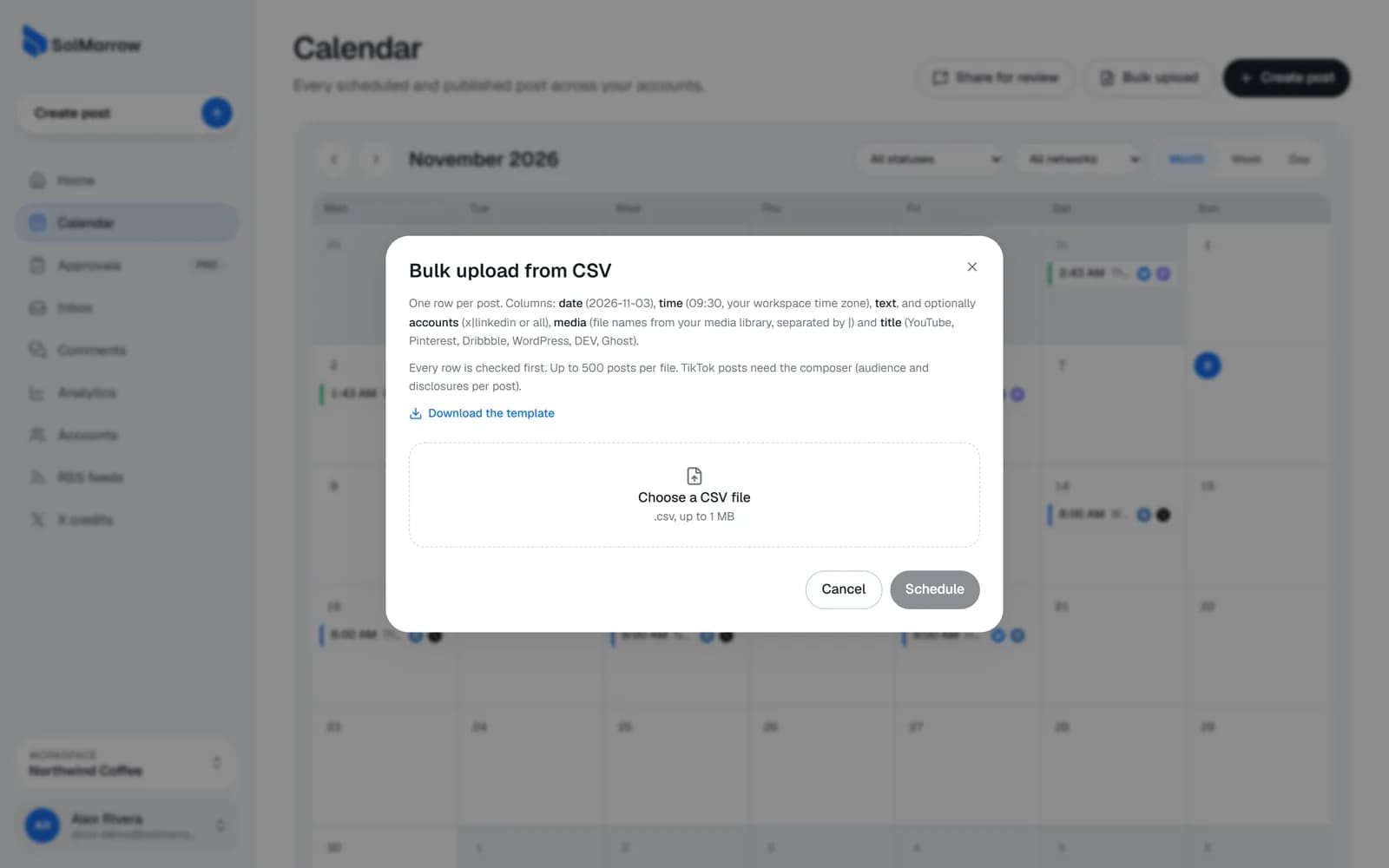
Steps
- Open the Calendar and click Bulk upload.
- Download the template (solmarrow-template.csv) if you want a starting point.
- Fill one row per post and save it as a .csv file.
- Choose the file. SolMarrow checks every row first and shows what is ready and what needs fixing.
- Click Schedule to schedule all ready posts.
Columns
| Column | Required | Example | Notes |
|---|---|---|---|
date | Yes | 2026-11-03 | Year-month-day. |
time | Yes | 09:30 | 24-hour time in your workspace time zone. |
text | Yes | Our spring menu is here | The post text. |
accounts | No | x|linkedin | Networks separated by |, or all. |
media | No | menu.jpg|clip.mp4 | File names from your media library, separated by |. |
title | No | Spring menu | For YouTube, Pinterest, Dribbble, WordPress, DEV and Ghost. |
Limits
- Up to 500 posts per file, and files up to 1 MB. Split bigger plans into several files.
- TikTok posts need the composer, because each one needs its own audience and disclosure choices.
Best practices
- Upload media first, then use the exact file names in the
mediacolumn. - Save as CSV UTF-8 in Excel or Google Sheets, so emojis and accents survive.
- Wrap text with commas in quotes. Spreadsheet apps do this automatically when you save as CSV.
- Start small. Try a file with three rows first to check the format, then upload the full plan.
Still need help? Email support@solmarrow.com. A person reads every message and answers within 1 business day.