Create a post
Use the composer to pick accounts, write your text, add media, check the preview and publish now, schedule or save a draft.
Everything starts in the composer. Open it with Create post at the top of the sidebar, or click a day or time slot in the Calendar.
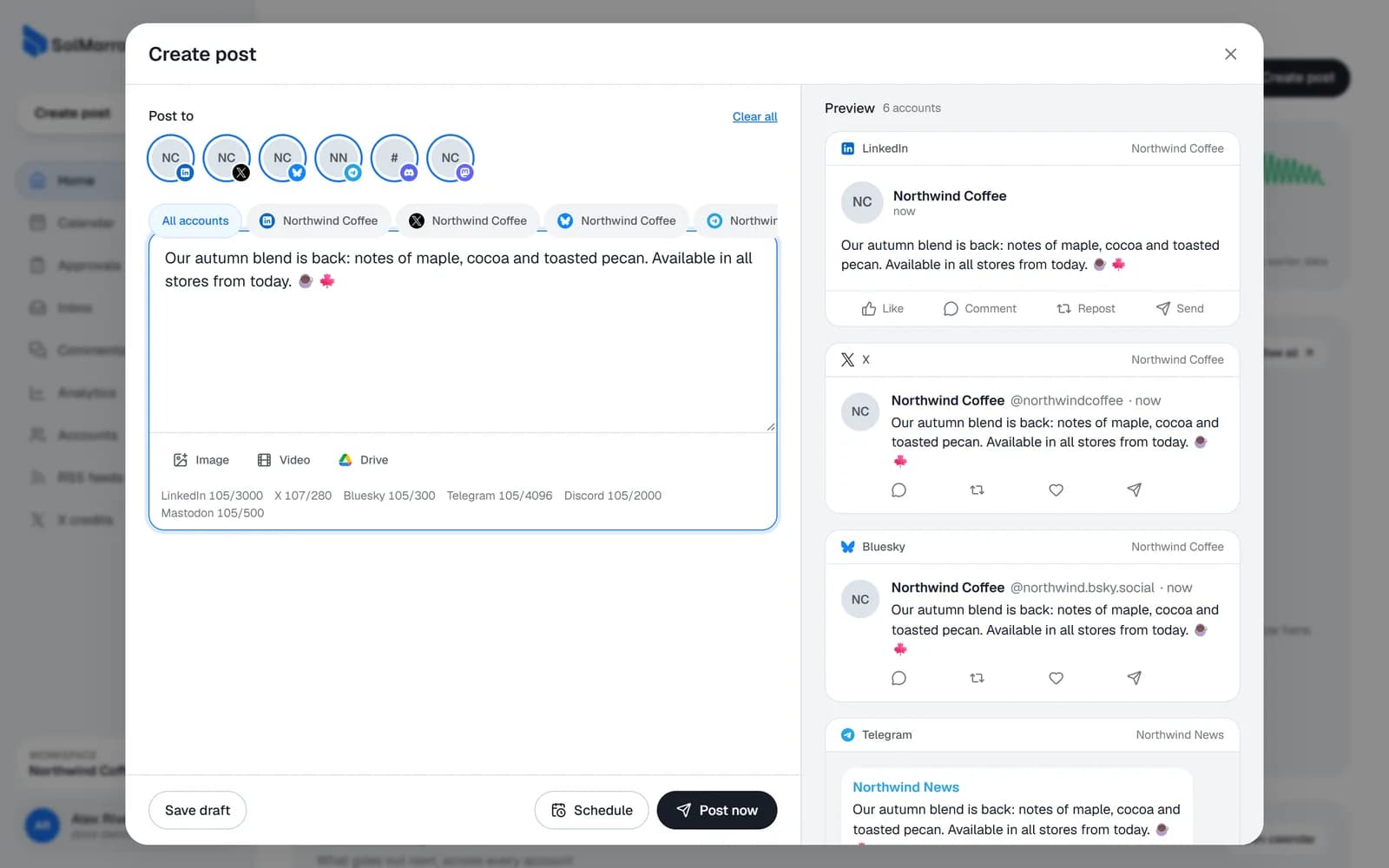
Step by step
- Choose where it goes. Under Post to, click one or more connected accounts.
- Write your text in "What do you want to share?". The counter under the text shows the characters left for each chosen network.
- Add media (optional). Drop files in, choose them from your computer, or use Add from Google Drive. You can also bring in a page from Notion.
- Adjust per network (optional). Click an account's tab to write a version only that account gets. See Per-network versions.
- Fill in network settings if shown, for example a YouTube title or a Pinterest board. See Network settings.
- Check the Preview on the right. It shows how the post looks on each network.
- Finish with one of the buttons:
| Button | What happens |
|---|---|
| Post now | The post is queued and goes out within a few seconds. |
| Schedule | Pick a date and time (in your workspace time zone), then Schedule post. |
| Save draft | Saved without a time. Finish it later from the calendar's drafts. |
| Send approval (Pro) | Goes to the Approvals board; nothing is published until someone approves it. |
Checks before anything goes out
The composer lists any problems under Checks, for example text that is too long, too many images, or a missing video for YouTube. Fix them and the schedule button turns on.
Best practices
- Lead with the point. Many networks cut the text after a line or two; put the key message first.
- One idea per post. Clear posts get more engagement than long lists of announcements.
- Use media. Posts with an image or a short video usually get noticed more.
- Check links in the preview. Some networks (Bluesky, LinkedIn) show a link card.
- Schedule, don't rush. Scheduling a few hours ahead leaves time to spot a typo in the calendar.
Still need help? Email support@solmarrow.com. A person reads every message and answers within 1 business day.