Use SolMarrow with AI agents (MCP)
Connect ChatGPT, Claude, Cursor or any MCP client to SolMarrow. Your AI assistant can list accounts, draft and schedule posts and read results.
SolMarrow runs an MCP server (Model Context Protocol), the open standard AI assistants use to work with other tools. Once connected, you can ask your assistant things like "Draft three LinkedIn posts about our launch and schedule them next week."
SolMarrow MCP URL: https://mcp.solmarrow.com/mcp
What your AI agent can do
- List your workspaces and connected accounts, with each network's posting rules.
- Write posts and save them as drafts, or schedule them at least 5 minutes ahead.
- Add images or videos from a public link, or upload files.
- Check scheduled, published and failed posts, with their links.
- Read likes, comments, shares and views.
- Delete drafts, scheduled or failed posts.
Safety built in
- Agents can't publish instantly: posts are drafts or scheduled at least 5 minutes ahead, so you see them in your calendar first.
- Agents can't connect new social accounts; you do that in SolMarrow.
- You approve access when you connect, and you can remove it any time in Settings → Apps and AI agents.
- Up to 300 agent posts per person per day.
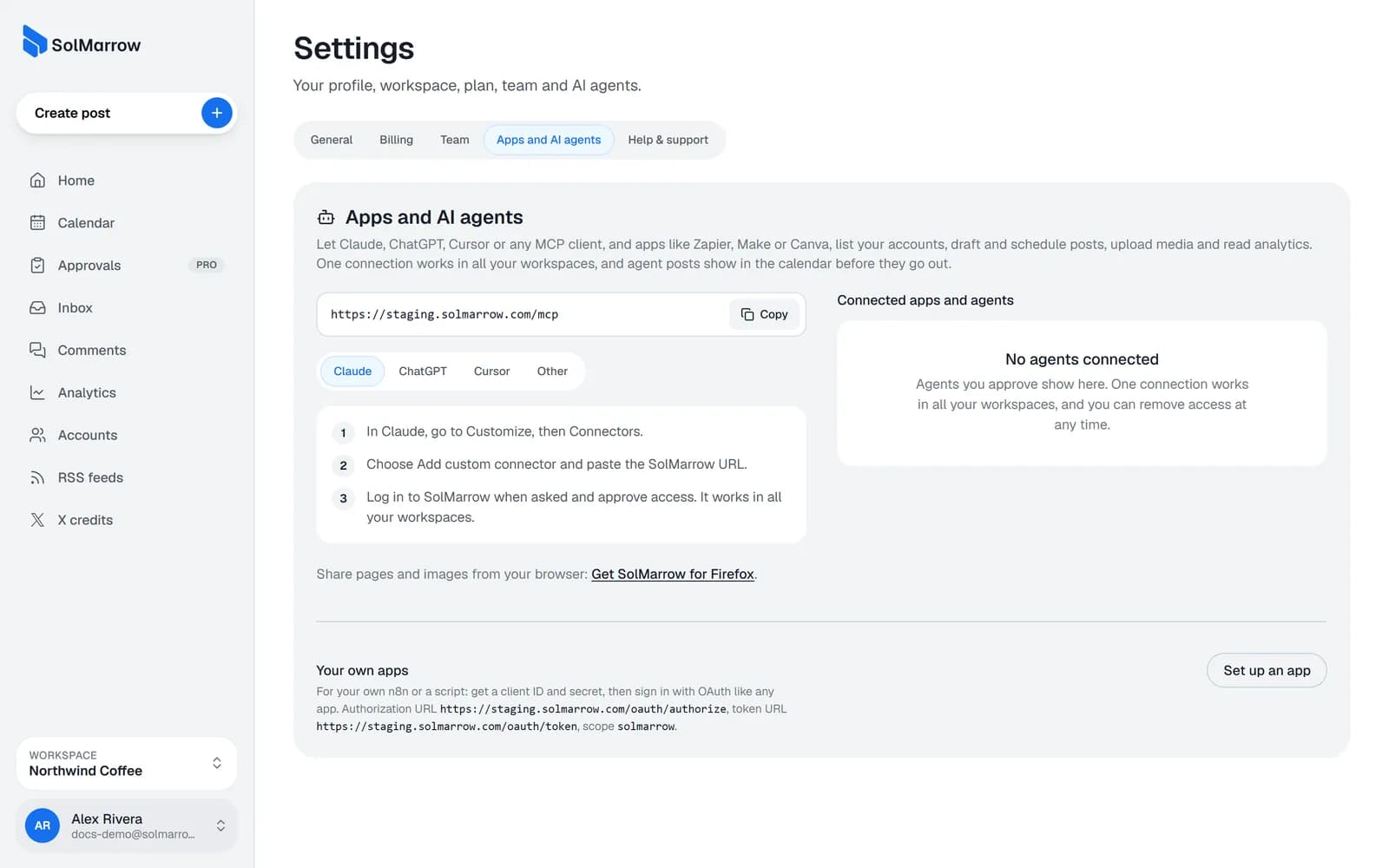
Connect your assistant
- ClaudeCustom connector
- ChatGPTCustom MCP server in ChatGPT
- Le ChatMistral's assistant, custom connector
- RaycastRaycast AI on Mac and Windows
- LM StudioLocal models with MCP tools
- CursorAI code editor
- VS CodeGitHub Copilot agent mode
- WindsurfCascade agent in the editor
- ZedAgent panel in the Zed editor
- KiroAWS's agentic IDE
- Claude CodeAnthropic's coding agent
- CodexOpenAI's coding agent
- Gemini CLIGoogle's terminal agent
- WarpAgentic terminal
- GooseOpen-source local agent
- n8nMCP Client node in workflows
General steps for any MCP client
- Add a remote MCP server (sometimes called a custom connector) with the URL above.
- When asked, log in to SolMarrow and approve access.
- Start a chat and ask about your accounts or posts.
Prompts to try
- "Which social accounts are connected in SolMarrow?"
- "Write a LinkedIn post about our new feature and save it as a draft."
- "Schedule this post to X and Bluesky tomorrow at 9:00."
- "What did I post this week, and how did it do?"
Tip: Ask your assistant to save drafts first. Review them in the calendar, then schedule them yourself or ask the agent to schedule them.
Still need help? Email support@solmarrow.com. A person reads every message and answers within 1 business day.