How to schedule one post to every social network, for free
Write a post once, pick your accounts, check each preview and schedule it. A five-minute walk-through that works on SolMarrow's free plan.
Guides4 min read
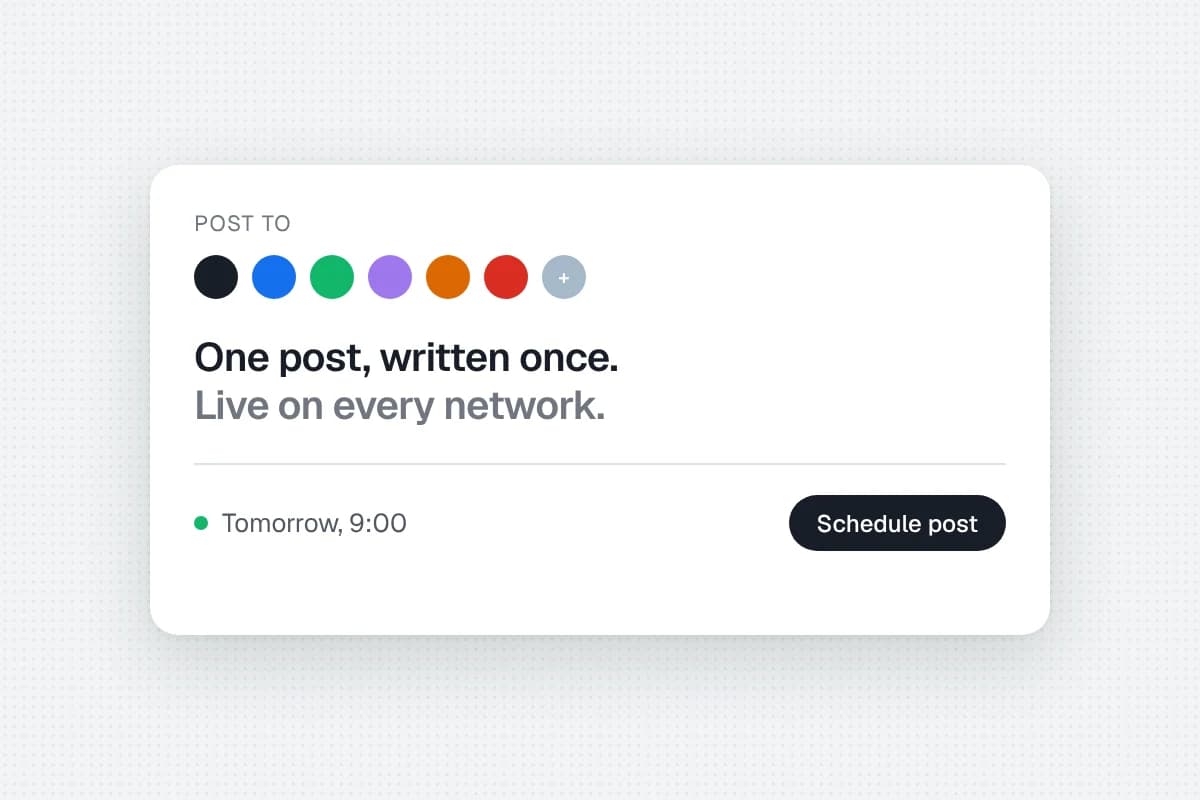
Posting the same news to several networks by hand is slow, and it is easy to forget one. With a scheduler you write once, choose where it goes and let it publish at the right time. Here is the whole flow in SolMarrow, and it works on the free plan.
What you need
- A free SolMarrow account. No card is needed, and the free plan has unlimited social accounts and unlimited posts.
- One or more social accounts to connect.
Step by step
- Create your account at app.solmarrow.com/signup and set your time zone in Settings. Every schedule follows your workspace's time zone.
- Connect your accounts. Open Accounts, choose a network and approve SolMarrow on that network's own sign-in page. See How connecting works.
- Open the composer. Click Create post at the top of the sidebar.
- Choose where it goes. Under Post to, click every account you want.
- Write once. The counter under the text shows how many characters are left for each chosen network.
- Check the preview. It shows how the post will look on each network, and the Checks list warns you about text that is too long or media that is missing.
- Schedule it. Click Schedule, pick the date and time, then Schedule post. The post appears in your Calendar.
Give a network its own version
One text rarely fits every network. Short and direct works on X and Bluesky, a little longer on LinkedIn. Click an account's tab in the composer to write a version only that account gets. See Per-network versions.
After it goes out
When a post is published, its status changes to Published with a link to the live post. If a network refuses a post, it shows as failed with the reason, and the failed posts guide explains how to fix it.