How to Schedule Social Media Posts Across Time Zones
Schedule social posts across US time zones without mistakes. Learn audience-based timing, daylight saving checks, and a reliable publishing workflow.
Guides5 min read
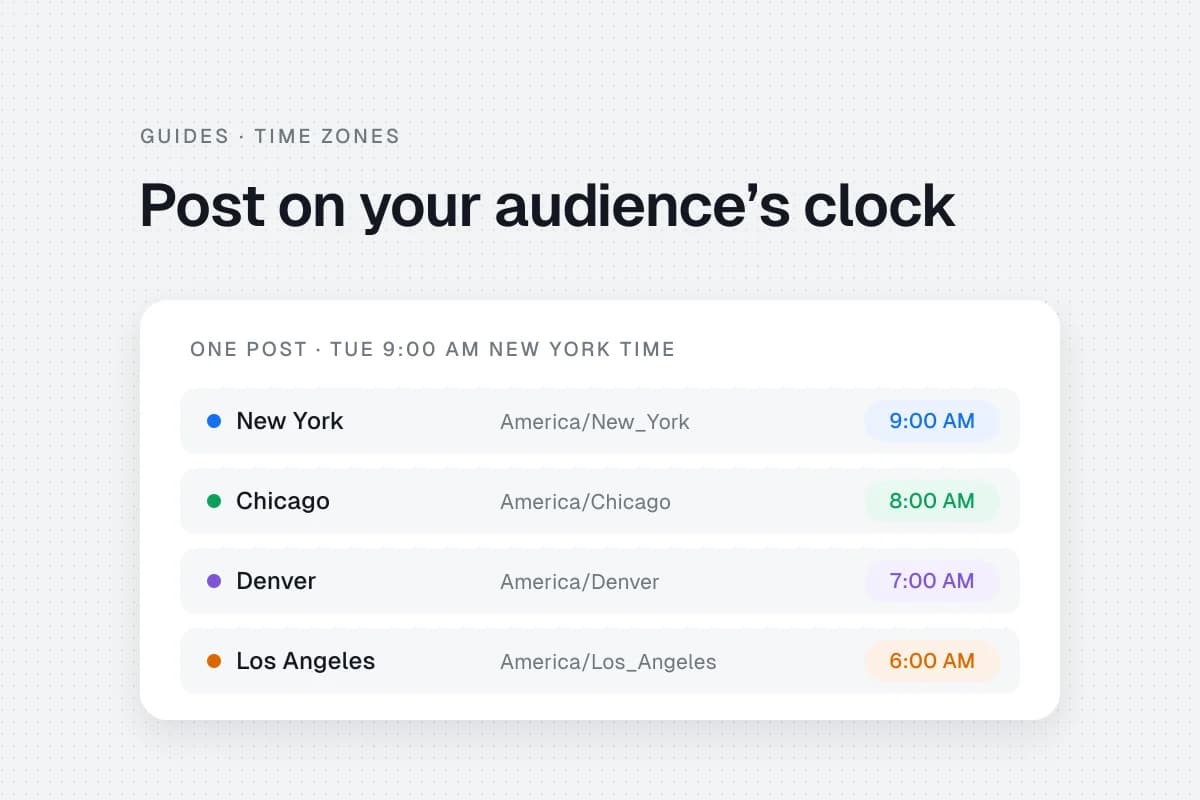
A post scheduled for 9 a.m. in New York does not reach Los Angeles at 9 a.m. The same instant is 6 a.m. there. For freelancers, remote teams and businesses serving customers in different regions, this can turn a sensible content plan into an inconvenient one.
The practical answer is to plan around your audience's local clock, use named timezones in your calendar and verify the final scheduled timestamp. You do not need to memorize UTC offsets. You do need a process that works when someone travels or daylight-saving rules change.
Choose the audience's clock
Start by asking who should see the post and when they are likely to be available. A local coffee shop should usually follow its customers' local business day. A nationwide software business may want to compare several regional windows.
Before scheduling, write down the audience region, channel, intended local time and person responsible for replies. These details matter more than a universal “best time to post” chart.
A useful planning example:
| Audience | Named timezone | Example test window |
|---|---|---|
| New York | America/New_York | Weekday morning |
| Chicago | America/Chicago | Weekday lunch |
| Denver | America/Denver | Weekday afternoon |
| Los Angeles | America/Los_Angeles | Weekday morning |
| Phoenix | America/Phoenix | Local business hours |
These are illustrative windows, not proven engagement peaks. Your account analytics should determine which windows deserve more testing.
Why daylight saving creates problems
Timezones are not always fixed offsets. Many US locations change their UTC offset seasonally; most of Arizona does not. Rules can also change. The IANA Time Zone Database maintains location-based time rules used by many applications.
For recurring schedules, prefer a named timezone such as America/Los_Angeles over manually adding or subtracting a fixed number of hours. Check whether your actual scheduler supports automatic daylight-saving adjustments. For important events, confirm the exact date and displayed local time.
Set up a reliable scheduling routine
- Identify the audience. Choose a city or region instead of writing only “US audience.”
- Select the correct channel. A freelancer handling several brands must verify the account before setting the clock.
- Configure the timezone. If the scheduler offers channel-level settings, select the audience's named timezone.
- Choose a queue or fixed time. Routine educational posts may fit recurring queue slots. A webinar reminder or launch needs a specific date and time.
- Prepare the post. Check the caption, image dimensions, links and any time-sensitive wording.
- Preview the schedule. Confirm whether the calendar displays your browser timezone or the channel timezone.
- Verify publication. After the first post goes live, compare the platform timestamp with the intended audience-local time.
Buffer's timezone and posting schedule documentation illustrates why the distinction matters. Buffer supports channel-specific timezones and distinguishes recurring queue slots from individually fixed timestamps. It also warns that a browser-local calendar display can differ from the channel's publishing clock. These are Buffer-specific examples, not promises about every scheduler.
A practical example for a remote freelancer
Imagine you live in Boston and manage an account for a California consultant. The client requests posts at 9 a.m. Los Angeles time every Tuesday and Thursday. Record that requirement as “Tuesday and Thursday, 09:00, America/Los_Angeles.” Do not store it as a permanent Boston-time conversion.
Set the channel's timezone if the chosen platform supports it. Otherwise convert the specific dated occurrence using a reliable timezone-aware calendar and double-check the final schedule. During seasonal clock changes, recheck both the upcoming queue and any fixed event posts.
For a campaign spanning several US regions, consider testing separate windows instead of publishing the same message repeatedly. A different audience may respond better at a different local hour, but you need evidence from the actual account before deciding.
Keep the calendar understandable
Add four fields to every time-sensitive post: target timezone, intended local date/time, actual scheduled timestamp and reviewer. This small change makes handoffs safer.
A 30-day social content planning guide can help batch drafts. Use a social media calendar template to track the final timing and approval.
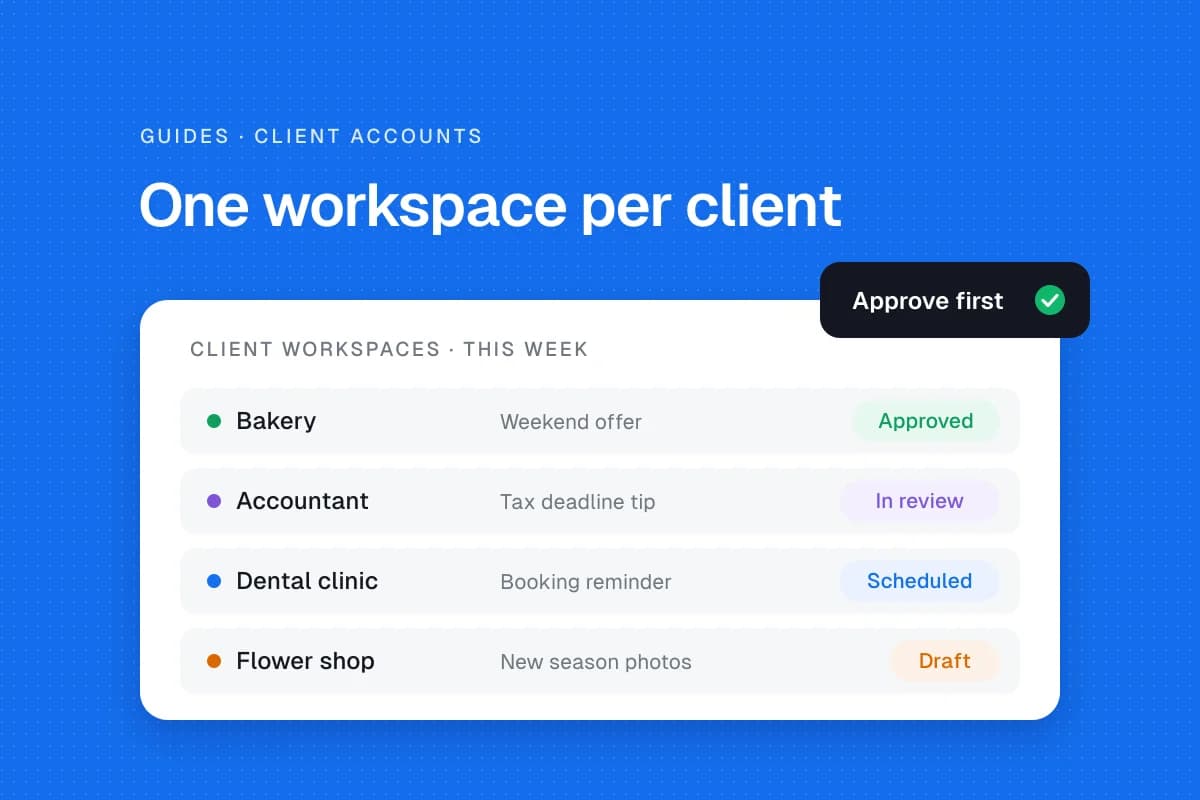
In SolMarrow, every schedule and the calendar use the workspace's time zone, which the owner or an admin sets in the workspace's General settings (scheduling guide). A freelancer whose clients sit in different regions can give each client its own workspace set to that audience's time zone. The free plan includes one workspace; more workspaces are part of Pro (pricing). If you manage several clients, the guide to managing multiple client accounts covers the rest of the setup.
Mistakes to watch for
- Scheduling in your laptop's timezone: Your device location may not match the audience.
- Confusing a queue slot with a fixed appointment: Some schedulers rearrange queued posts when the recurring schedule changes.
- Using EST or PST year-round: A named location and specific date are less ambiguous.
- Ignoring local support hours: An early post may attract questions before anyone is available.
- Assuming scheduled means published: Connections or platform restrictions can interrupt publishing.
A final preview and a post-publication check are worth the extra minute for an important announcement.
Measure the results instead of guessing
Begin with a manageable schedule and compare similar content across different windows over several weeks. Look beyond impressions: useful replies, saves, qualified website visits and inquiries may tell you more about business value.
Do not conclude that a time slot is superior from one unusually successful post. Content topic, format, distribution and audience behavior all affect performance.
Frequently asked questions
Should I use my timezone or my audience's?
Plan around the audience when timing matters. Your tool may display an equivalent time in your local timezone, so verify the clock used for publishing.
Do schedulers adjust automatically for daylight saving?
Some do. Buffer documents timezone-aware scheduling, but verify the behavior of your specific product and review important posts around clock changes.
Is there a single best posting time for the United States?
No. Different audiences have different routines. Use a sensible starting window and adjust based on your own account data.
Can I schedule different posts for different regions?
Yes, when the platform and campaign permit it. Use audience relevance and avoid sending repetitive near-identical content unnecessarily.
Sources
- IANA Time Zone Database, location-based timezone and daylight-saving rules.
- Buffer Help Center, channel timezone, queue and display-time behavior.
- Buffer publishing overview, scheduling feature context.
The takeaway is simple: document whose clock matters, choose a named timezone, verify the schedule and measure the result. That is more dependable than constantly converting hours in your head.