How to Bulk Schedule Social Media Posts Using CSV
Learn how to bulk schedule social media posts using a CSV file, prepare clean data, avoid upload errors and verify your publishing calendar.
Guides8 min read
If you already plan social posts in a spreadsheet, copying each caption into a scheduler one at a time is frustrating. A CSV file can turn that spreadsheet into a batch of drafts or scheduled posts, provided your publishing tool supports imports for the networks and formats you need.
The important detail is that there is no universal social media CSV template. One scheduler may accept a date, caption and URL; another may require network-specific fields. The safest method is to download your tool's current template, prepare a small test batch and review every imported post before publishing.
What bulk scheduling with CSV actually means
CSV stands for comma-separated values. It is a plain-text table that spreadsheet applications can export. Each row usually represents a post, while columns hold information such as caption, date, link and media reference.
A CSV is not a direct publishing command for Instagram, LinkedIn or Facebook. For example, Buffer's official bulk upload documentation describes reading the CSV, previewing its rows and then saving them as drafts or adding them to a queue. The scheduler still needs authorized account connections and must follow each network's posting restrictions.
This distinction matters. A successful file upload does not guarantee that every post was accepted, scheduled or ultimately published.
Check your scheduler before building the spreadsheet
Before investing time in a large file, answer four questions:
- Does your current plan include CSV bulk upload?
- Which connected social networks accept imported posts?
- Are videos, carousels, Stories and first comments supported?
- Does the import create drafts, queue entries or exact scheduled times?
For a concrete example, Buffer's bulk-upload help article, updated in 2026, says its CSV import is available on Free and paid plans, with different per-channel limits. It also notes that video posts and carousels are not supported through that CSV flow. These are Buffer-specific rules and may change.
Hootsuite has a separate Bulk Composer workflow with its own file format, time requirements and limits. Do not use a Buffer template in Hootsuite or assume that the same columns work in another tool. In SolMarrow, CSV bulk upload is part of the free plan: open the Calendar, click Bulk upload and fill the date, time and text columns, with accounts, media and title as optional columns. TikTok posts still need the composer. The CSV bulk upload guide lists every column, and plan a month of posts with a CSV file shows a worked example.
Start with a clean spreadsheet
Use the template supplied by the chosen scheduler whenever possible. A general planning sheet might look like this:
| Field | Example | Why it matters |
|---|---|---|
| Account | Brand A / LinkedIn | Prevents wrong-channel imports |
| Date and time | 2026-11-23 09:30 | Keeps the calendar specific |
| Timezone | America/New_York | Makes the intended clock explicit |
| Caption | A short product tip | Main post text |
| Link | https://example.com/guide | Destination for the reader |
| Media URL | Approved public image URL | Optional, tool-dependent |
| Approval | Approved | Internal control before upload |
This table is a planning example, not a guaranteed upload schema. Some tools do not accept an Account, Timezone or Approval column. Keep those in your working spreadsheet if useful, then export only the columns in the official template.
Avoid merged cells, extra header rows and hidden notes inside fields intended for upload. One row should describe one post.
Prepare your CSV step by step
1. Download the latest official template
Open the bulk-upload area for the specific social account. Download its template rather than reusing a file from last year. Network requirements can differ.
Buffer, for example, recommends downloading a fresh channel-specific template, because Pinterest and other networks may need additional fields. (Buffer Help Center)
2. Write and review the captions
Prepare the captions in the spreadsheet, but review them for the target network. A caption suitable for LinkedIn may not fit another channel's format or character limits.
Check product names, offers, dates, link destinations, hashtags and whether the post actually serves the intended audience. If the posts belong to a client, get approval before placing them in a publishing queue.
3. Format dates in the tool's required style
Never assume the import recognizes your computer's local date format. Buffer documents a Posting Time format of YYYY-MM-DD HH:mm in its CSV guidance. Hootsuite's Bulk Composer uses its own accepted formats and timing rules.
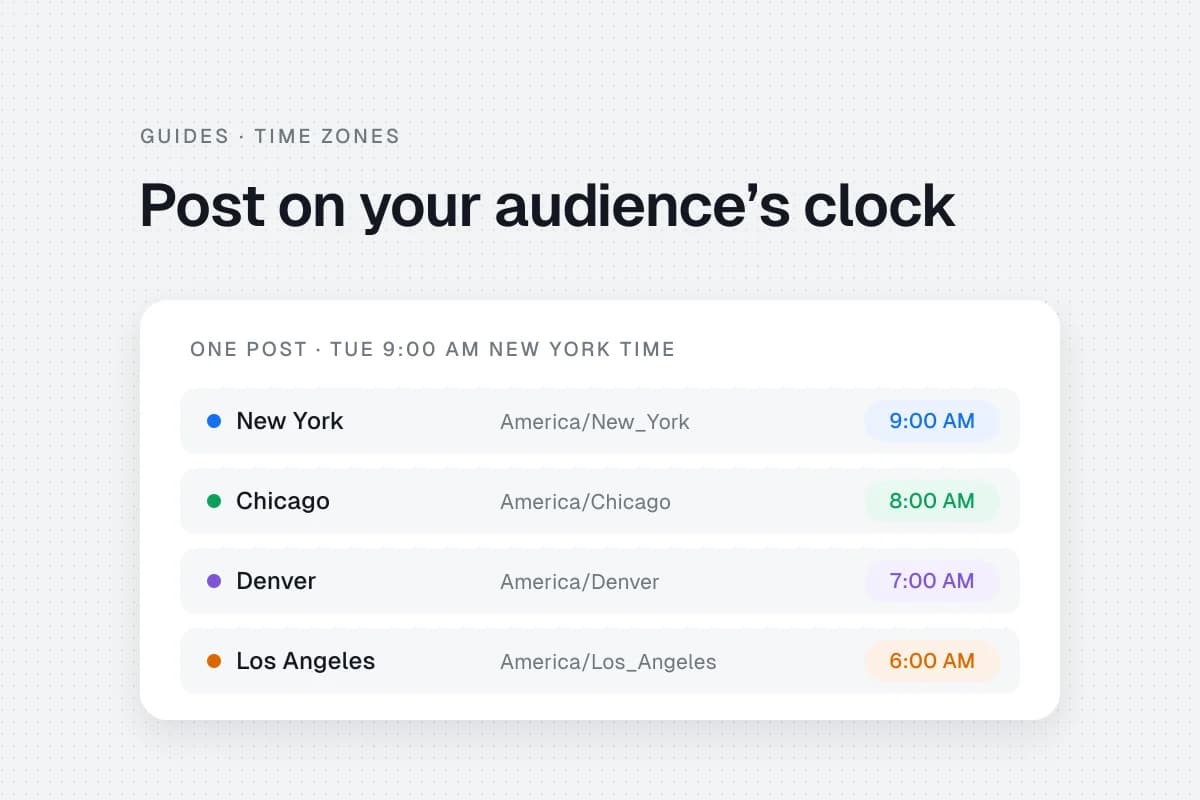
Check the channel timezone separately. If a campaign spans regions, the guide to scheduling across time zones explains why audience-local time matters.
4. Export as CSV with suitable encoding
In Google Sheets or Excel, export the required sheet as CSV. UTF-8 is a sensible default for captions containing accented characters and emoji. Buffer explicitly recommends CSV UTF-8 or UTF-16 for emoji compatibility.
CSV uses quotation marks to preserve commas and line breaks within cells. Let the spreadsheet exporter handle this instead of manually removing punctuation from captions.
5. Import a small test batch
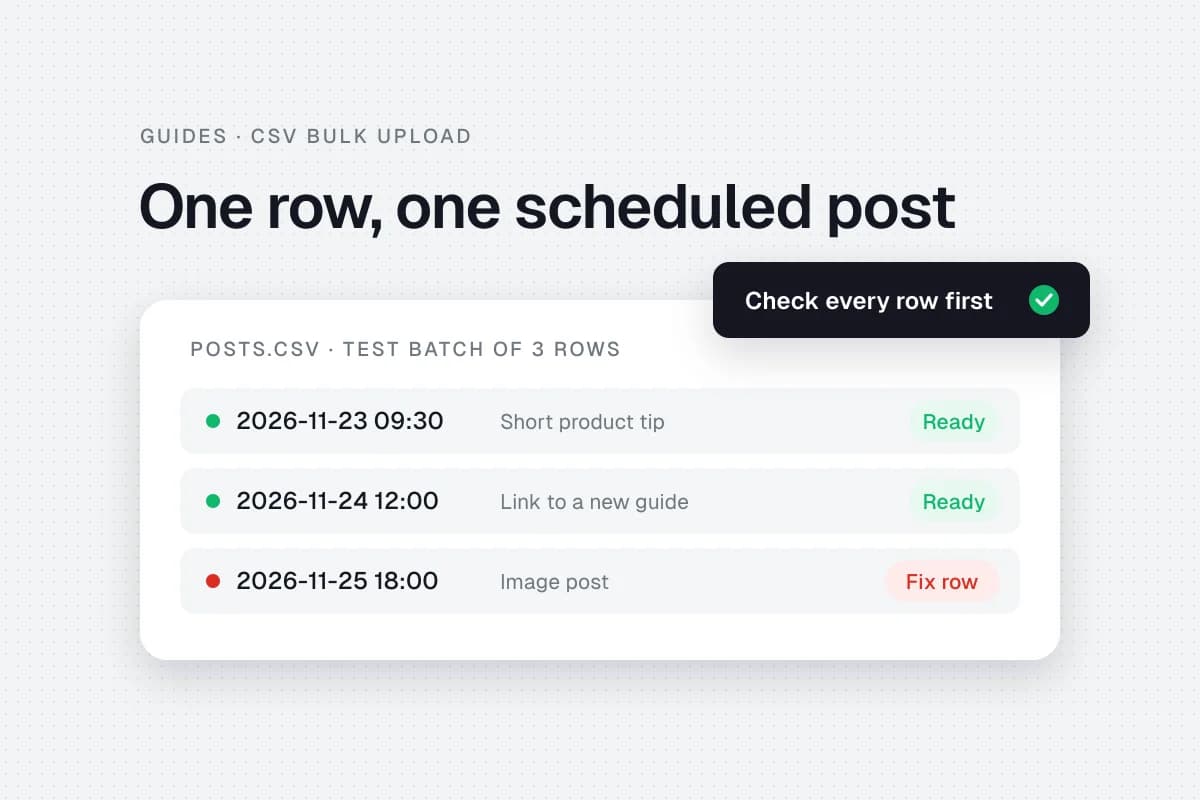
Start with three posts: one text-only post, one with a link and one with an image if supported. Upload the CSV and inspect the preview.
If the tool supports saving as drafts, that is a safer first test than immediately filling the queue. Buffer's documented flow provides a review screen and a choice to add posts to the queue or save drafts. The final confirmation matters; a file being read is not necessarily the same as posts being saved.
6. Fix errors and import the rest
Check the error messages for rejected rows. Correct the source sheet, export a fresh CSV and import only the rows that failed. Otherwise you may create duplicates.
When the import finishes, count the actual created posts and compare them with the number of accepted rows. Some tools skip entries when limits are reached, so do not assume every row arrived.
7. Verify the calendar and the live result
Open the scheduling calendar. Confirm the account, caption, image, date and timezone for several entries, especially the first and last post in the batch.
After publishing starts, inspect the real posts on the social platforms. A scheduled record is not proof that every API request succeeded.
Common CSV upload problems
| Problem | Likely cause | What to check |
|---|---|---|
| Column error | Wrong or changed template | Download the latest channel template |
| Garbled emoji | Character encoding issue | Export as UTF-8 |
| Wrong publishing time | Timezone or date format mismatch | Check channel timezone and required format |
| Missing posts | Queue limit or invalid rows | Compare accepted and skipped rows |
| Missing media | Unsupported media type or inaccessible URL | Check format and media access |
| Duplicate posts | Reimported successful rows | Import only corrected failures |
These are common diagnostic categories, not guarantees about a particular tool's error messages.
How many posts should you upload at once?
Start with the number you can realistically review. A 200-row upload is not efficient if nobody checks the output.
Buffer's 2026 documentation describes a Free-plan limit of up to 10 posts per channel per upload, subject to remaining queue space, and up to 100 per channel per upload on paid plans. It also notes that over-limit rows may be skipped. Hootsuite's documentation describes a separate Bulk Composer limit and additional constraints. (Buffer documentation; Hootsuite documentation)
Because plan details change, verify them again on the day you upload. These limits belong to Buffer and Hootsuite; SolMarrow accepts up to 500 posts and 1 MB per file (CSV bulk upload guide).
Keep approval separate from import
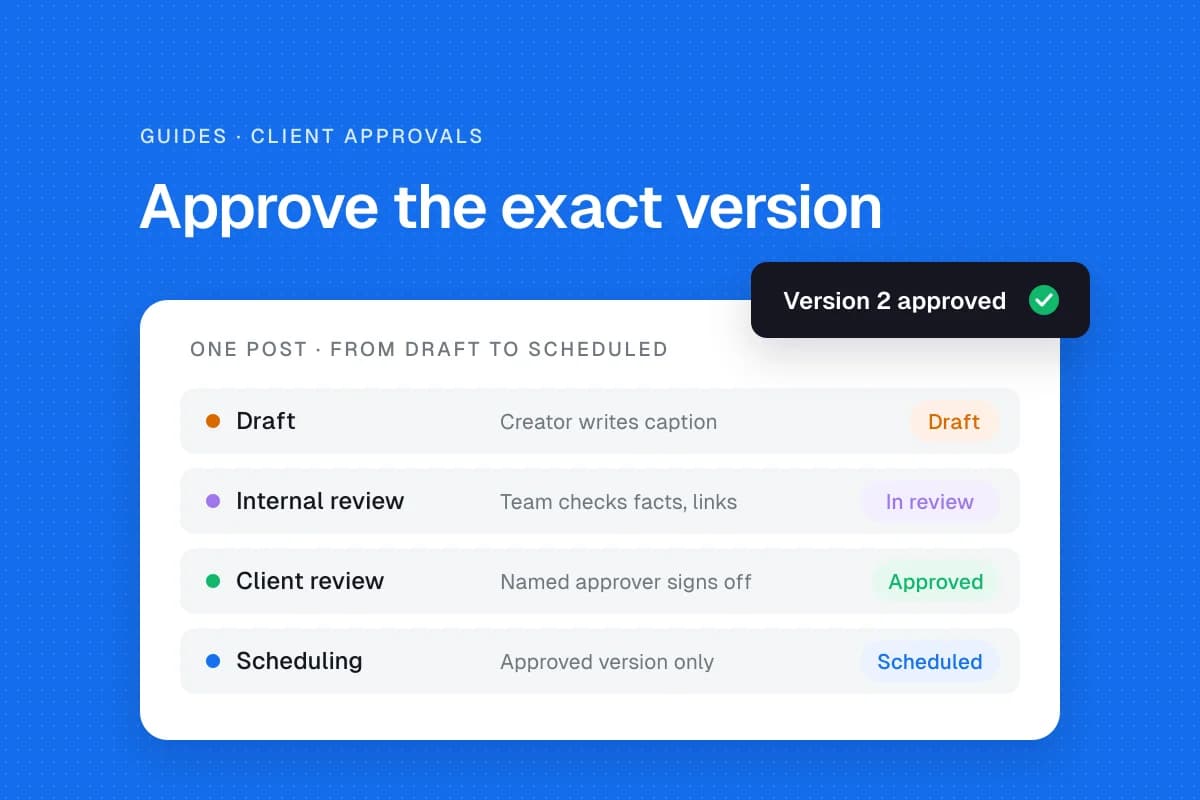
Bulk upload is a speed tool, not a substitute for editorial judgment. Mark client-approved rows in your working sheet and filter out everything still awaiting review. The final export should contain only posts authorized for the intended queue.
For a repeatable review process, see how to create a client approval workflow for social media.
When a campaign contains regulated claims, sensitive offers or a large number of account-specific messages, an extra review pass is worthwhile. No CSV parser can decide whether a claim is legally appropriate.
When CSV is not the right tool
A CSV is useful for straightforward recurring posts. It is less suitable when each post needs complex media, interactive features, individualized approval or frequent last-minute edits.
If the platform does not support the required format, schedule those posts manually in its composer. You may still use the spreadsheet as the planning source of truth.
Frequently asked questions
Can I bulk schedule posts for free?
Some products offer CSV bulk upload on free plans. Buffer documents a free-plan option with limits, and SolMarrow includes CSV upload in its free plan (pricing). Check the current feature availability and account restrictions before relying on it.
Can I upload videos and carousels using CSV?
It depends on the tool. Buffer's documented CSV workflow does not support videos or carousels. Other tools have different rules.
Will my CSV publish posts immediately?
Not necessarily. A scheduler may import them as drafts or queued posts. Review the confirmation screen and the resulting calendar.
Can I use the same CSV file for every social network?
Usually not safely. Use the network-specific template provided by the scheduler and adjust captions, media and timing as needed.
Sources and verification
- Buffer Help Center, How to upload posts in bulk to Buffer, current 2026 templates, limitations, preview and error handling.
- Hootsuite Help Center, Bulk schedule your posts, separate Bulk Composer format and scheduling restrictions.
The fastest CSV workflow is not the one that imports the most rows. It is the one that gets approved content into the correct accounts at the correct times, with enough checks to catch mistakes before customers see them.