How to Schedule Social Media Posts with Claude
Connect Claude to a social media scheduler through MCP, prepare a post, check its destination and timezone, and verify the published result.
AI agents6 min read
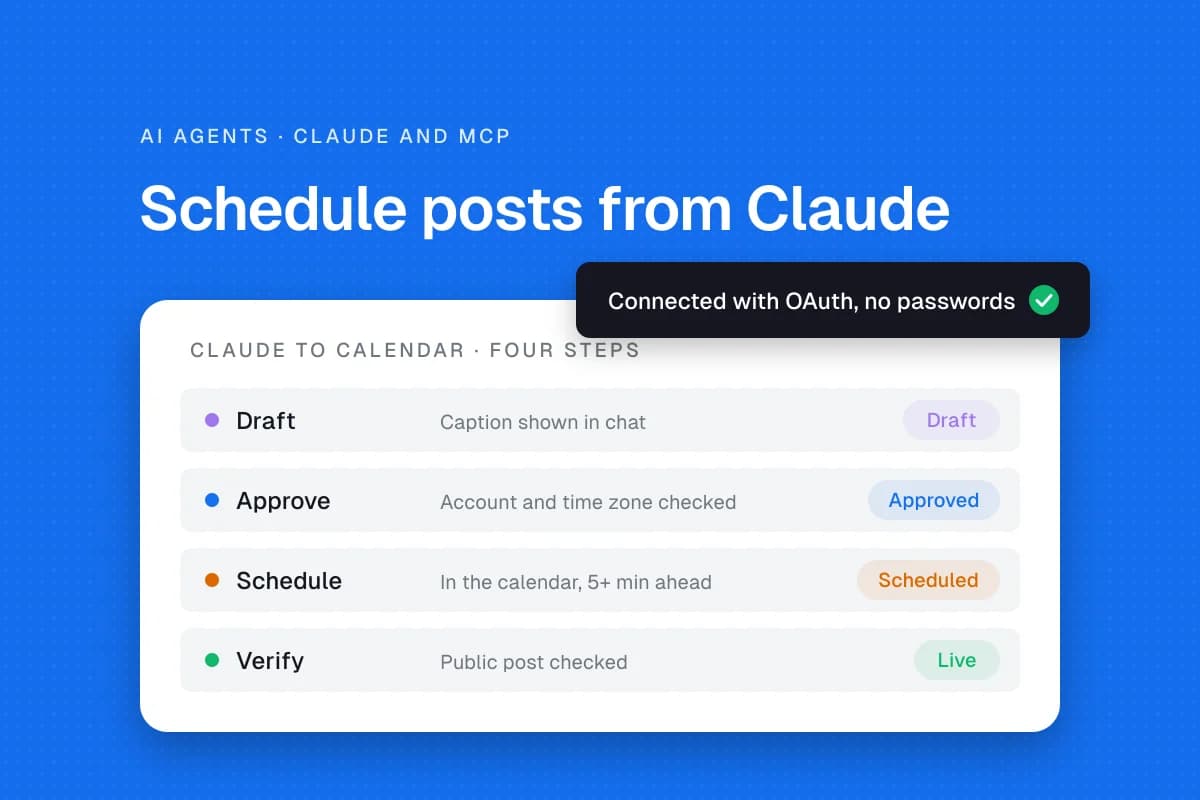
Claude can help write social media posts, but drafting a caption in chat does not schedule it. To place a post on a real calendar, Claude needs an authorized connection to a publishing service that supports the destination account.
One option is SolMarrow's remote MCP connector. This walkthrough follows SolMarrow's Claude integration guide.
What you need before starting
Prepare a Claude account with custom connector access, a SolMarrow account, and a social profile connected through the scheduler's supported authorization process. Confirm that your desired network, account type and post format are supported.
Have your approved caption facts, destination link, intended publishing timezone and rights to any attached image or video ready. A prompt cannot substitute for a valid account connection.
SolMarrow's Free plan includes MCP access, drafts and scheduling in one workspace, with unlimited posts. Posting to X needs X credits or your own X developer key; see pricing before scheduling to X.
Connect Claude to SolMarrow
According to the Claude setup guide, the connection process is:
- Open Claude and go to Customize, then Connectors.
- Choose Add custom connector.
- Name it SolMarrow.
- Paste
https://mcp.solmarrow.com/mcpas the remote MCP server URL. - Start the sign-in process and authenticate with SolMarrow.
- Review and approve the requested access.
- Return to Claude and confirm that the connector's tools are available.
Interface labels and plan availability can change. If you cannot find the connector option, check the current Claude settings and integration documentation.
This is delegated authorization. Do not paste social account passwords, session cookies or private tokens into a conversation.
Check the account before creating a post
First, ask Claude to inspect the connected accounts without changing anything:
Show my connected social accounts in SolMarrow. Identify the account you would use for a LinkedIn post, but do not create or schedule anything.
Check the exact profile name. For an agency, a correct caption on the wrong client's account is still a serious publishing error.
The SolMarrow Claude tool guide lists tools including list_workspaces, list_accounts, create_post, list_posts and get_post. SolMarrow checks each network's limits before anything is scheduled.
Write a useful prompt for the draft
Provide a specific brief instead of asking Claude to “post something tomorrow.” For example:
Draft a LinkedIn post for my profile about a free scheduling guide. Use a practical, friendly tone, include this approved link, and avoid statistics or claims I have not provided. Show me the exact caption and target account. Do not schedule until I approve.
Review the result for accuracy, tone, spelling, links and unsupported promises. If Claude changes a material detail, correct it before moving on.
Separating drafting from authorization makes it clear when you are asking for a suggestion and when you permit a real action.
Schedule the approved version
After checking the draft, give a clear scheduling instruction:
Schedule the approved caption to the selected LinkedIn profile for Tuesday at 9:00 a.m. America/New_York. Confirm the exact account, timezone and scheduled status. Do not create a duplicate.
The example time is illustrative. Choose your own future date. Named timezones matter because US daylight saving changes UTC offsets. The IANA Time Zone Database documents location-based rules.
In SolMarrow, scheduled posts must be at least five minutes ahead and appear in your calendar first, as the Claude guide explains. Allow more time when client approvals or media processing are involved.
After Claude reports success, open the calendar and confirm the account, caption, media, date and timezone. A response saying “scheduled” does not prove the public post exists.
Verify the post after publication
When the scheduled time passes, check the calendar status and open the public post if the network provides a URL. Confirm the caption, image, link and destination account.
If the post failed, inspect the failure message and review network connection or format restrictions. Do not repeatedly request the same post without checking whether an earlier attempt succeeded. Duplicate retries can create duplicate content.
For client work, record who approved the version and when it went live. That record is more useful than saying only that Claude handled it.
Repurpose an article across networks
Claude can draft separate posts from one approved article. Ask for distinct angles rather than copying identical text everywhere.
| Network | Draft angle | Check before scheduling |
|---|---|---|
| One professional takeaway | Personal versus company account support | |
| Bluesky | A concise useful insight | Character limits and link preview |
| Visual-first caption | Media format and account eligibility | |
| Discord | Context for a specific community | Channel permissions and community rules |
These are editorial examples, not guarantees of direct publishing support for every format. Confirm each destination in the connected scheduler.
For more detail, see scheduling across timezones and client approval workflows. For the bigger picture, read what an AI social media scheduler actually does.
Troubleshoot common problems
Claude cannot find the connector. Confirm it was added to the correct Claude account and that the interface supports custom connectors.
No accounts appear. Verify that the scheduler has authorized social profiles and the connector can access the intended workspace.
A post cannot be scheduled. Check account type, media requirements, future time, supported network and any network-specific charges.
A scheduled post is missing publicly. Look for queued, pending or failed status. A saved schedule is not verified publication.
The caption changed after approval. Review the exact final version and obtain fresh approval for material changes.
Keep the workflow secure
Grant only necessary access and disconnect tools you no longer use. You can remove access in SolMarrow under Settings, AI agent (MCP), or remove the connector in Claude, as the Claude guide describes.
For teams, keep an explicit review stage before the action that creates or schedules a post. For individuals, a final confirmation can serve the same purpose.
Frequently asked questions
Can Claude schedule posts without a separate service?
Claude can draft text on its own. Real scheduling requires a connected tool or service authorized to publish to the destination account.
Does Claude need my social media passwords?
No. The documented SolMarrow connection uses OAuth through the service instead of asking you to paste passwords into chat.
Can I use Claude on mobile?
The integration guide says to add the connector on web or desktop first, then use it in supported Claude mobile apps. Check current client support.
Will Claude publish immediately?
That depends on the action you authorize and the connected service. Draft first, then schedule only after confirming the account, copy and time.
Sources
- SolMarrow Claude MCP setup and tools, official vendor instructions.
- SolMarrow pricing and network charges, official plan terms.
- Model Context Protocol introduction, technical background.
- IANA Time Zone Database, named timezone rules.
The simplest safe process is to connect one account, prepare one draft, approve it, schedule it and verify the public result. Expand only after that works.