How to Use ChatGPT to Plan and Schedule Social Media Posts
Plan social content with ChatGPT, connect a scheduler through MCP, review drafts and confirm your posts actually publish.
AI agents7 min read
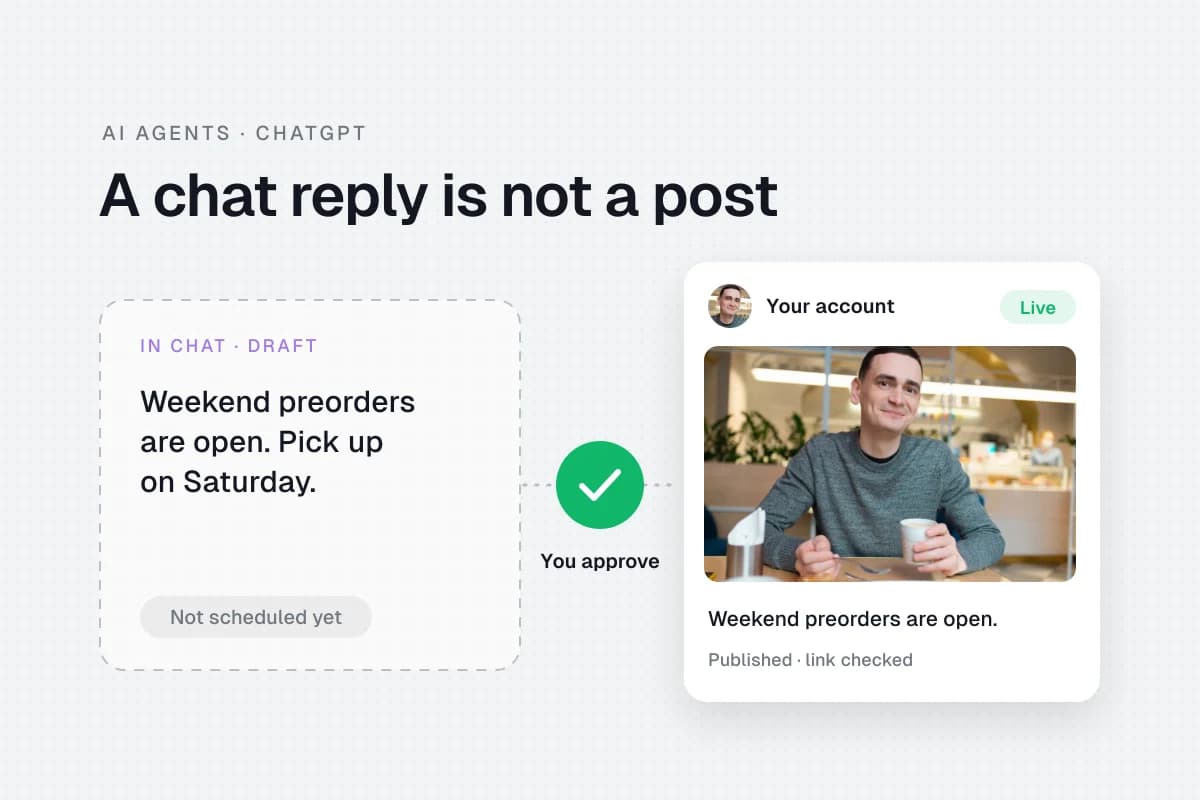
ChatGPT can help turn a rough idea into a week's worth of social posts. But writing a caption and actually publishing it are different jobs. For reliable ChatGPT social media scheduling, you need a connected publishing tool, access to the right accounts, and a review process that catches mistakes before anything goes live.
This guide shows a practical workflow for a small business or creator. You can use ChatGPT just for writing, or connect it to a scheduler such as SolMarrow through Model Context Protocol (MCP) when your ChatGPT plan and workspace support that connection.
Decide what ChatGPT should handle
Start with three responsibilities: content planning, content approval, and publishing. Keeping them distinct makes it easier to see who made a decision and whether a post reached its destination.
| Job | What ChatGPT can help with | What you still need |
|---|---|---|
| Planning | Generate themes, outlines and caption drafts | Real audience and business context |
| Editing | Rewrite tone and adapt formats | Human fact-checking and brand review |
| Scheduling | Request a connected tool to save or schedule a post | Authorized scheduler and accounts |
| Verification | Ask a connected tool for status | Check actual platform result and links |
| Reporting | Summarize returned metrics | Confirm data definitions and source |
A chat response with five posts for next week is not a publishing confirmation. It is a draft until a supported tool records the posts and you verify the result.
Prepare a short content brief
Give ChatGPT the context that an employee would need. Include the product, target audience, approved claims, tone, platforms, goals, and anything the business must not promise.
For example, a neighborhood bakery could ask for four Instagram ideas promoting weekend preorders. The brief should include actual opening hours, the order deadline, pickup location, and available products. If a detail is missing, ask ChatGPT to flag it rather than fill in a plausible answer.
A useful brief includes:
- Who the post is for and what they care about
- One clear goal, such as newsletter signups or store visits
- The specific offer or source material
- Brand voice and words to avoid
- Destination networks and preferred formats
- Review owner and intended publishing timezone
Save the brief somewhere your team can reuse. That reduces the temptation to start every prompt from scratch.
Turn one idea into platform-specific posts
Ask for variations, not identical captions copied everywhere. A professional LinkedIn update may need context and a takeaway. An Instagram caption might work better with a concrete opening and visual concept. A Bluesky post may need a tighter message.
Try this prompt:
Write three draft social posts based only on the approved product notes below. Make one suitable for LinkedIn, one for Instagram and one for Bluesky. Keep claims unchanged, suggest a visual for each, and flag information you cannot verify. Do not schedule or publish anything.
Review each draft for unsupported statistics, outdated prices, unapproved testimonials, and links that point to the wrong place. Generated writing can sound convincing even when a claim is not established.
Connect ChatGPT to a scheduler
ChatGPT alone does not guarantee direct publishing to every network. You need a compatible integration with the necessary permissions.
SolMarrow's official ChatGPT integration guide documents a remote MCP connection at https://mcp.solmarrow.com/mcp, using OAuth sign-in rather than copying a social network password into the conversation. The guide notes that custom MCP availability depends on ChatGPT plan and workspace settings.
Follow the current integration instructions:
- Open the available custom connector or MCP settings in your ChatGPT environment.
- Add the remote MCP server URL provided by SolMarrow.
- Complete the SolMarrow OAuth authorization screen.
- Confirm which workspace and social accounts the connection can access.
- Start by asking for account information or creating a draft, not an immediate public post.
- Inspect the result inside SolMarrow before scheduling.
If your ChatGPT account cannot add a custom MCP server, keep using ChatGPT to prepare approved text and paste it into your existing scheduler. Do not assume a feature is available on every plan. The same MCP connection also works with other assistants; see how to schedule social media posts with Claude.
Build a safe scheduling sequence
A simple workflow is easier to audit than one large instruction that drafts, approves and publishes in one step.
First, create drafts. Then check the destination account, caption, media, link, scheduled date and timezone. Only after approval should the scheduler create the scheduled entries.
For example, a US business publishing at 9 AM in New York should specify America/New_York, not a fixed UTC offset. Named timezones account for daylight saving changes. The IANA Time Zone Database is the reference for location-based timezone rules.
Ask the connected scheduler to return a post identifier and its saved status. A saved scheduled item is useful evidence, but not proof that the social network published it successfully. If you want the same steps to run inside a workflow tool, see how to automate social media scheduling with n8n.
Confirm what actually went live
A post can fail because an account connection expired, a media format was rejected, or a network changed its publishing requirements. Build a short check after the intended time.
| Status | Meaning | Next action |
|---|---|---|
| Draft | Content saved, not queued | Review and approve |
| Scheduled | Scheduler accepted the request | Check after the planned time |
| Published | Scheduler reports success | Verify the public post URL |
| Failed | Publishing was not completed | Inspect error, correct and retry carefully |
| Unknown | No reliable status available | Check the destination account manually |
Avoid blindly retrying an unknown result, because that can create duplicate posts. Record the final public URL when one is available.
SolMarrow connects each network through its official API and checks each network's limits before anything is scheduled. MCP access is included in the free plan, together with unlimited posts, the calendar, drafts and CSV upload in one workspace; Pro ($20/month) adds unlimited workspaces, team invites and post approvals. Posting to X needs X credits or your own X key, and some networks, such as TikTok and LinkedIn Pages, open as each platform approves SolMarrow. See how AI agents connect through MCP for the setup details.
Use AI for review without handing it every decision
ChatGPT is helpful for finding awkward phrasing, comparing a draft against a brand brief, and producing a checklist. It should not invent missing approvals or assume that silence from a client means permission to post.
For regulated, sensitive or time-critical content, ask the responsible person to review exact claims, images and links. Keep an approval record when several people work on one account.
A practical weekly routine is to draft in batches, review on a separate day, schedule approved posts, and check failures after publication. Adjust the cadence to your workload rather than following a universal posting-frequency claim.
Common questions
Can ChatGPT schedule Instagram and LinkedIn posts?
It can request scheduling through a compatible connected tool that supports the specific account and format. Check the integration, account permissions and current network limitations first.
Does ChatGPT automatically publish everything it writes?
No. Writing a post in chat does not publish it. A connected tool must carry out a permitted action, and you should verify the result.
Is an MCP connection the same as giving ChatGPT my social password?
No. The SolMarrow integration documentation describes an OAuth authorization flow. Review permissions and revoke access if no longer needed; in SolMarrow, remove access under Settings, AI agent (MCP).
What is the safest first test?
Create one draft for an account you control, inspect it in the scheduler, then schedule a low-risk post with a clear timezone and confirm the public result.
Sources
- SolMarrow ChatGPT MCP setup, official integration documentation, consulted November 23, 2026.
- SolMarrow pricing, official plan information, consulted November 23, 2026.
- IANA Time Zone Database, authoritative timezone reference.
ChatGPT can shorten the time between an idea and a useful draft. A connected scheduler and deliberate approval process turn that draft into a dependable publishing workflow.